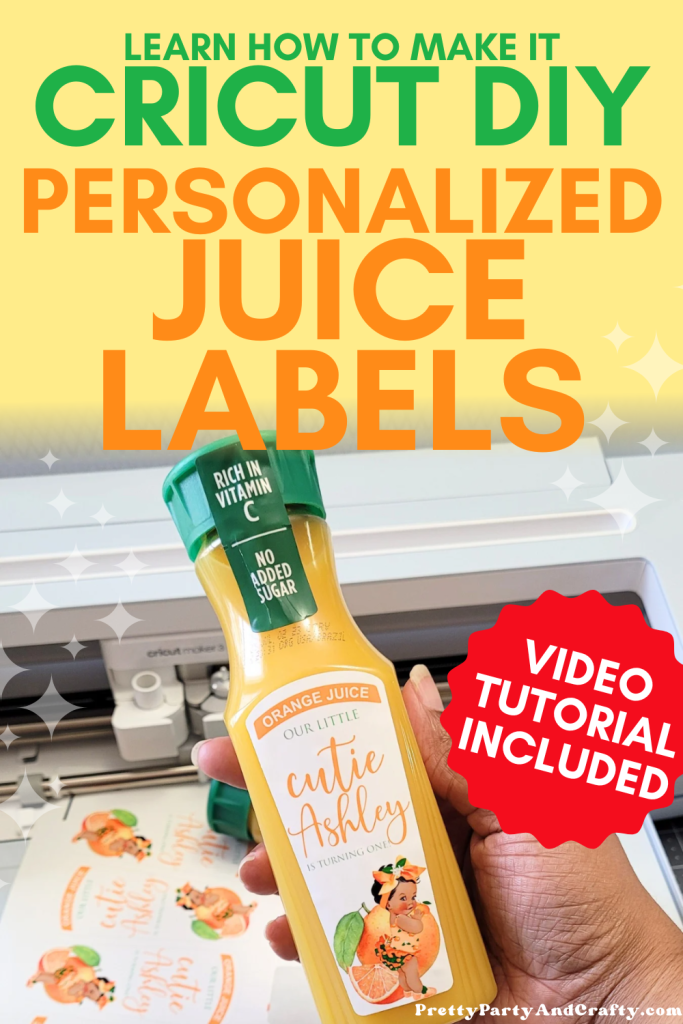
If you’ve been looking for a way to create custom orange juice labels with your Cricut, I got it covered! These labels are perfect for birthdays, brunch, baby showers, and more. With just a few simple steps in Cricut Design Space, you’ll have amazing looking labels in no-time following this Cricut tutorial.

IN THIS POST
GOTTA LOVE PERSONALIZED LABELS

I absolutely love making personalized orange juice labels with Cricut because it’s an easy way to add a custom touch to any event, occasion or celebration. My favorite thing to do is to add the personalized orange juices to a clear bag along with a mini champagne bottle to make the perfect to-go mimosa. Adults love a party favor, too!
Plus, if you’re a visual learner and want to craft along, there’s a full video tutorial so you can follow along step by step. And if you love this, be sure to check out our how to make 3d layered names Cricut tutorial. Don’t have a Cricut, but still want to make them? No worries, check out this tutorial on how to do it without a cutter or scissors
xoxo Victoria
SUPPLIES YOU’LL NEED FOR 3D LAYERED NAME
Below are all the items I used
LET’S MAKE 3D LAYERED NAME
1
STEP 1 Upload SVG
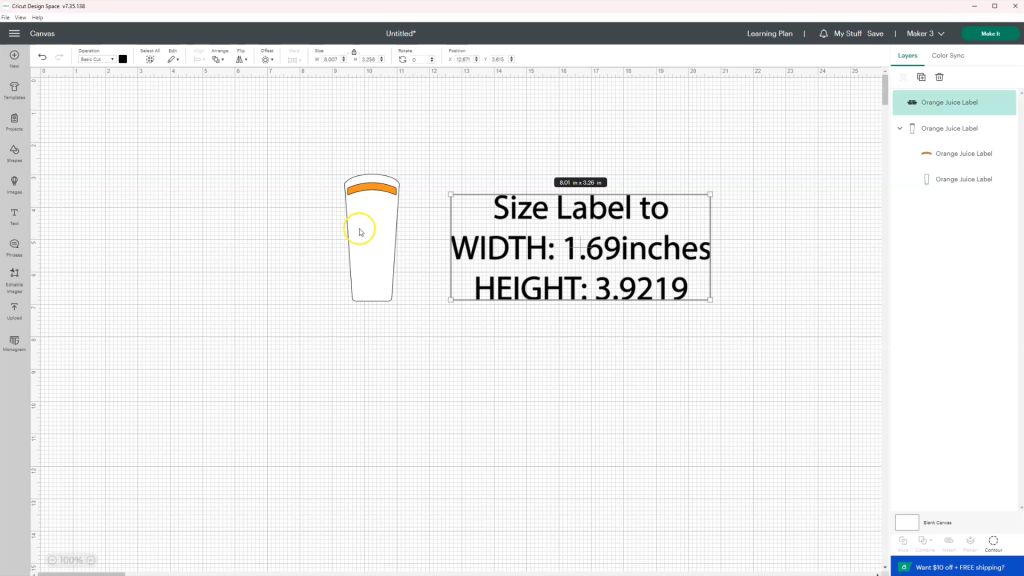
Open Cricut Design Space and start new project on blank canvas. Click the upload button on the left side panel and upload your juice svg template in the size of your choice (8oz or 11.5oz) and add it to the canvas and ungroup. Be sure to check the size and adjust if needed.
2
STEP 2 Design Your Label

Now it’s time to personalize. You can use graphics within Design Space or upload your own. Arrange them on top of the label template. Add text using the Text Tool. For the top banner text, you can curve the text to ensure it fits. Add additional text and graphics as needed.
3
STEP 3 Prepare to Print

Once your design is ready, flatten everything so it prints as one image. Create a print guide by adding a rectangle that is 6.75×9.25 and duplicating your labels and arranging them to maximize space. Delete the rectangle guide and attach your duplicated labels. Click MAKE IT in the top right corner. Send to your printer with bleed ON and system dialog box ON. For best results, use glossy waterproof vinyl sticker sheets and set your printer preferences to photo paper glossy to avoid ink smearing.
4
STEP 4 Send to Cut and Assemble
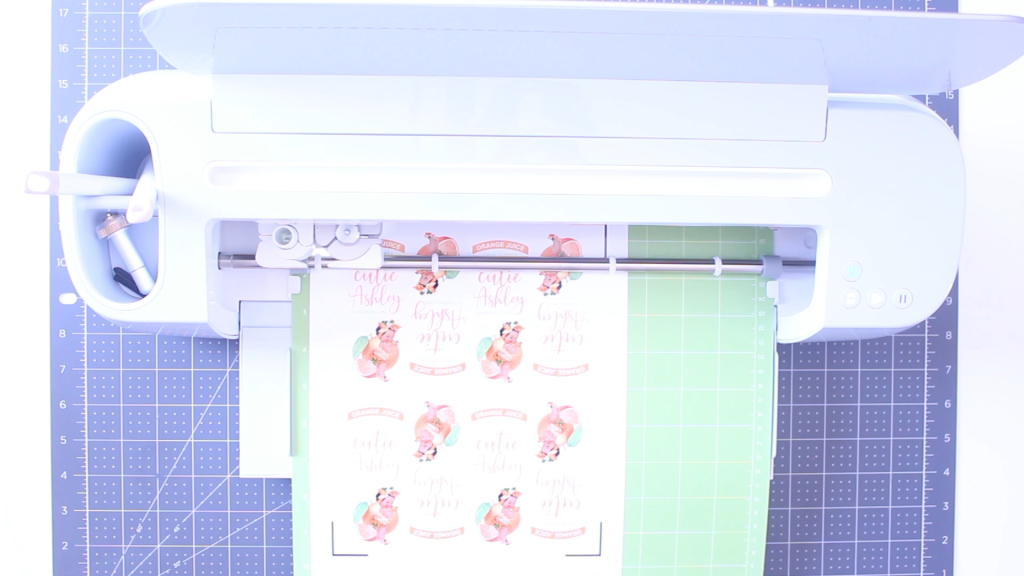
Once printed, load the sheet onto your Cricut mat. Choose Printable Vinyl Specialty (it now says Gold/Silver after it) for kiss cut, which makes peeling easy without cutting all the way through the backing. Peel label from sheet when done cutting and apply directly over the existing label (or remove).
5
STEP 5 Enjoy!
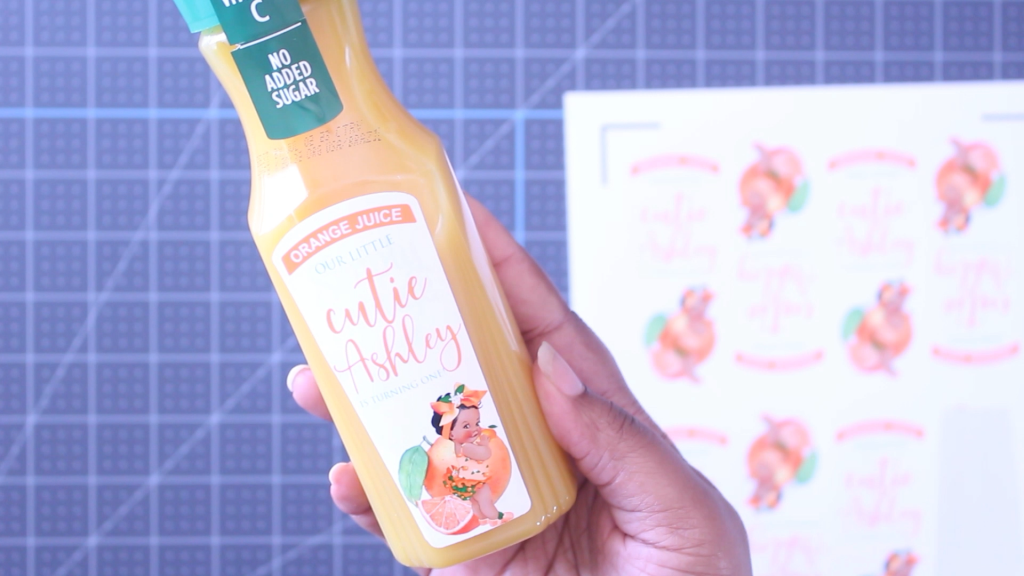
That’s it! You’re done. You’ve just made beautiful personalized juice bottle labels ready to gift for any special occasion!
Video Tutorial
QUICK TIPS
- If your Cricut struggles to ready glossy paper, try the matte tape trick (placing matte tape over the registration marks) or trace the marks with a permanent marker for best results.
- Fill your entire print area with duplicates, and rotate every other label if needed, to save time and paper.
QUICK NOTE:
Love pretty, parties, crafts and free? All that I ask is that you don’t be a stranger and CLICK HERE to follow me on INSTAGRAM or subscribe to my YOUTUBE channel. If you think your friends might like it, share the link to the post and pin the image below. Do that, and you can expect tons more freebies, tutorials, party inspiration, recipes and recommendations!